Change your theme's colour, backgrounds, logo and favicon from the Admin CP, without CSS. A live preview shows light and dark mode and warns about hard-to-read colours.
- MyStudio Options on: MyStudio → MyStudio Options, tab Theme
- MyStudio Options off: MyStudio → Themes → Theme Settings
- Saved per theme: pick it in Settings for. A child theme has its own settings.
Theme colour
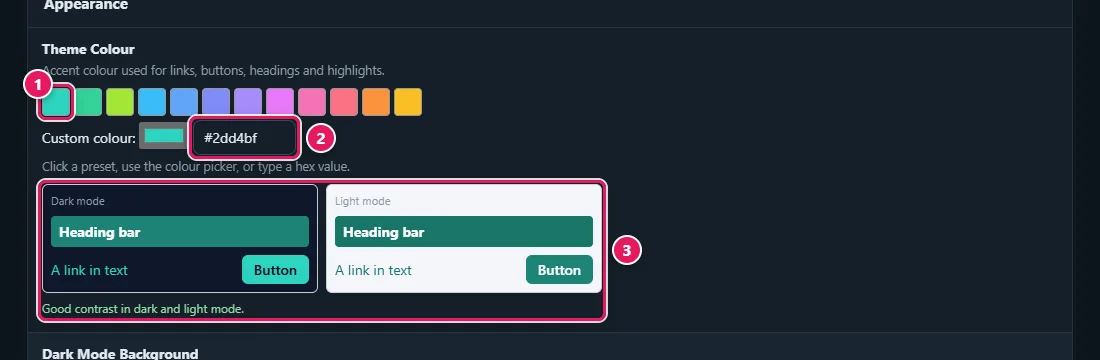
Used for links, buttons, headings and highlights. Click a preset, use the picker or type a hex value such as #2dd4bf.
Backgrounds for dark and light mode
- Dark Mode Background / Light Mode Background: the page colour; panels, borders and muted text follow.
- The theme's own: keep the designed background.
- Tint backgrounds with the theme colour: a touch of your colour, for a softer branded look.
Logo: icon and text, or an image
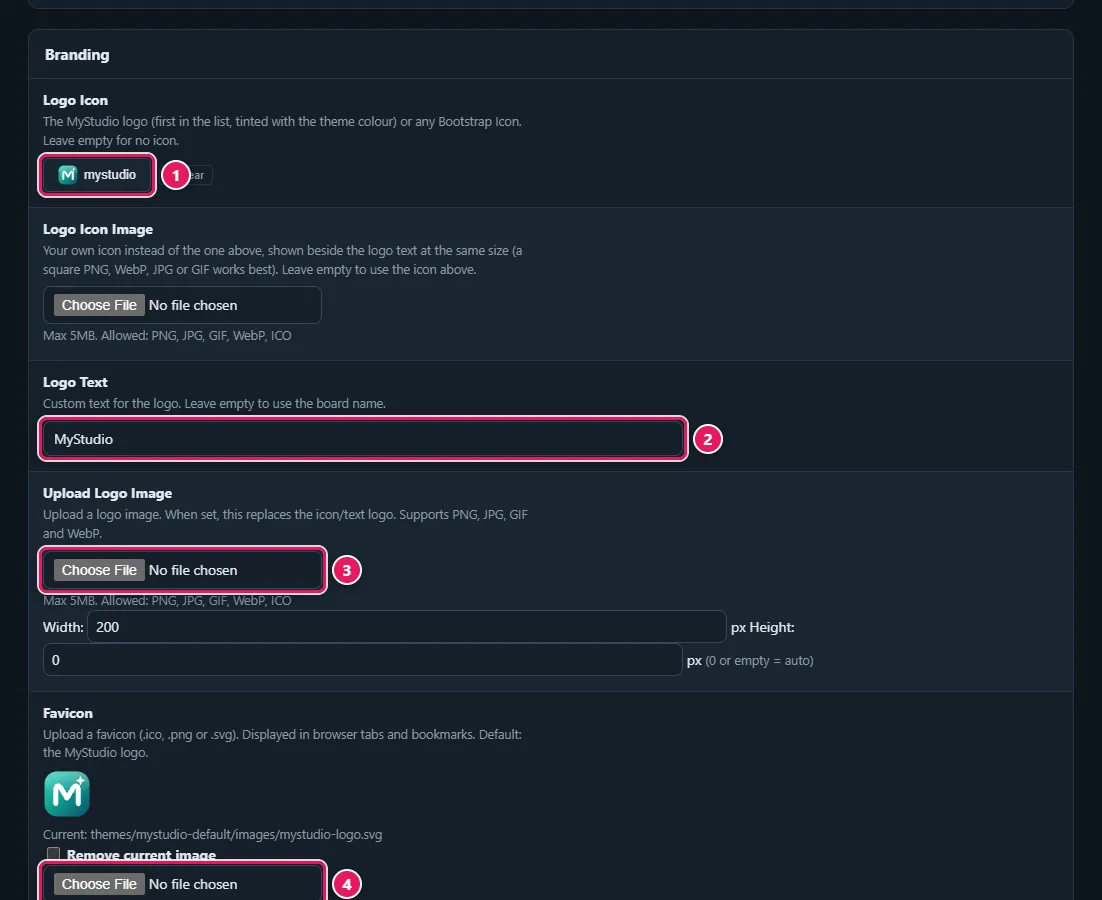
Logo text style
Font (any Google font too), size, weight, italic, case, letter spacing, icon size, icon gap and a vertical nudge. The font list draws each font in your own logo text. Empty fields keep the theme's look.
Favicon
A square ICO, PNG or SVG, at least 64 × 64 pixels: the icon in browser tabs and bookmarks.
Save and check
- Click Save.
- Reload your forum with Ctrl+Shift+R.
Settings never touch theme files, so updates keep them.
Theme developers: these come from the theme's options schema; your own themes can offer the same. See adding settings to a theme.